
Purchasing setup guide
Suppliers
Manual or import
Suppliers are the businesses you buy from. Add suppliers before adding products so each product can be linked to its source. Suppliers also drive the supplier-side of the unified contacts list.
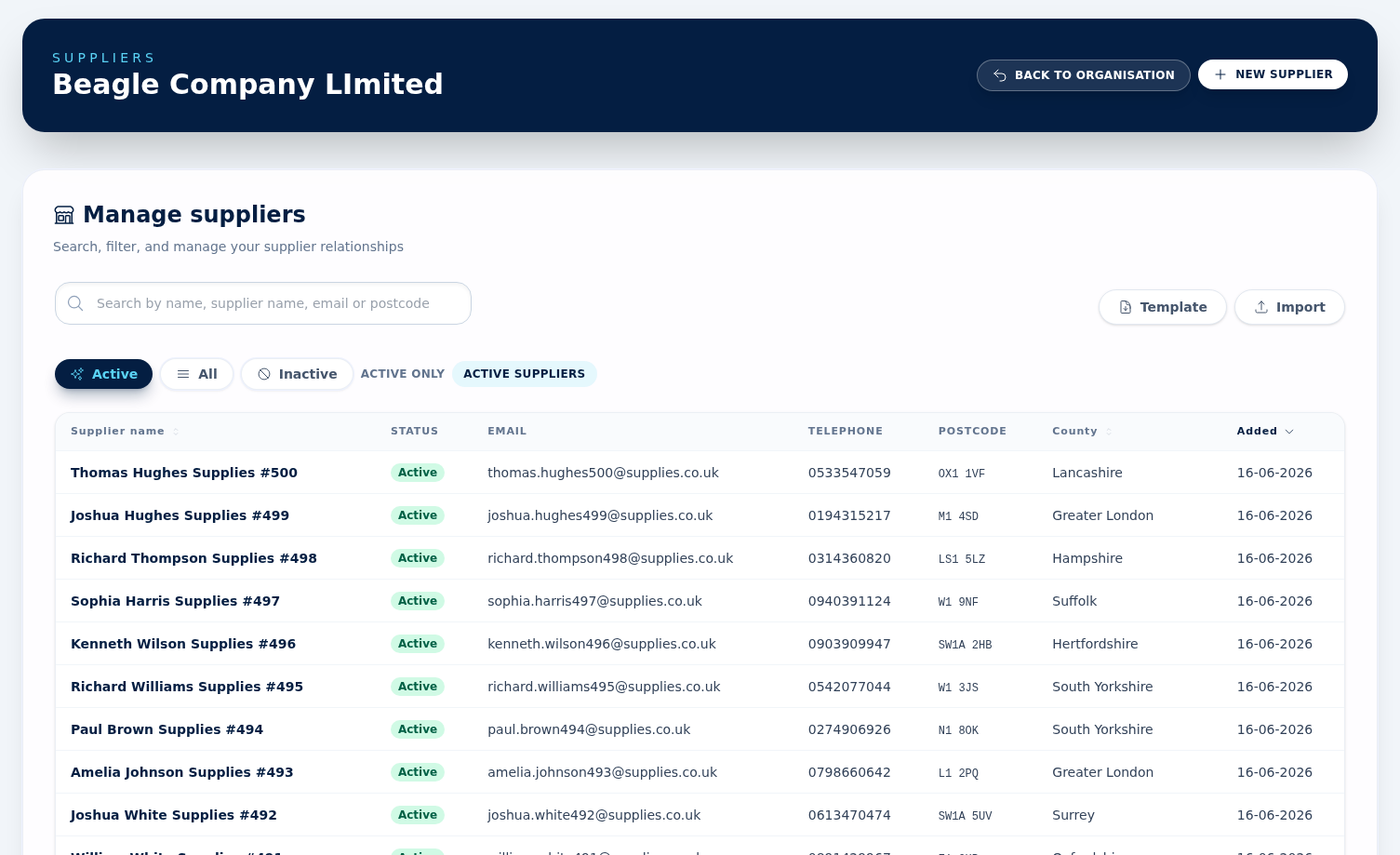
Add one supplier manually
Open Suppliers and use New Supplier. Capture supplier name, Companies House number, VAT number, address, country, county or region, postcode, email, telephone, mobile, and website. In edit mode, changes save in place while you work. Only an admin sees the Supplier is active tick box that marks a supplier inactive without removing historic records.
Import suppliers in bulk
Download Template, fill the .xlsx, then choose Import. Supplier imports follow the same upload, preview, and confirm flow as the other import tools, with live progress during import.
Look a supplier up at Companies House
The new-supplier form opens with a Companies House search. Type a name or number, then press Use these details on the right company and BeagleCRM prefills the supplier name, company number, address, county and postcode for you to check before saving. Open an existing supplier for editing and the same panel offers Review instead: it shows what the register holds beside what you have, and only the fields you tick are written — nothing is overwritten behind your back. The VAT number is not on the public register, so that one is always typed by hand. Once a supplier has a company number, its overview page carries a Companies House panel showing filing status, with a Re-sync button to fetch the latest filing data. It works exactly as it does for customers.
Search and status filters
The supplier list can be searched by name, supplier name, email, or postcode. Filter the grid by Active, All, or Inactive suppliers so paused relationships stay visible without cluttering the main working list.
Import error export
If any supplier rows fail validation in the preview, use Export errors to download suppliers-import-errors.xlsx for correction and re-upload.
Linking contacts and products
From a supplier record, add the people you deal with as contacts. Products are linked to suppliers from the Suppliers panel on the product page, not from the supplier record; the supplier's Products panel then shows each product with the supplier's own SKU, lead time, last cost and whether this supplier is the product's ★ Preferred one. The same contact can sit on a customer and a supplier at the same time.
That product-side panel is where each supplier's own trading terms live. Link supplier captures Their SKU, Lead time (days), Min. order qty, Pack size and Last cost, and the table shows them as Supplier / Their SKU / Lead time / Min. qty / Pack / Last cost. Use ★ Prefer to make one supplier the default for that product, Edit to change the terms and Remove to unlink. The minimum order quantity and pack size are what produce the amber hints on a purchase order line, and the lead time is what fills the expected delivery date.
Purchase orders and bills
Raise a purchase order from Purchase Orders or straight from the supplier's own Purchase orders panel, which pre-selects the supplier. A low-stock product shows a Raise PO shortcut that also fills in the product and the shortfall. Open the order to Download PDF, Send to supplier (emails the PDF to the supplier or one of its contacts, with replies coming back to you) or Mark as sent if you sent it another way. Once it has been sent that button reads Resend to supplier; if the supplier has no email address on file, and nor do any of its contacts, the send window says so and will not let you send until you add one.
When the goods arrive, the order's receive panel takes the quantity that actually turned up on each line — defaulting to whatever is still outstanding — adds those to stock and, unless you untick Also record a supplier bill for the value received, records a supplier bill for the value of that receipt rather than the order total. Book part of an order in and it becomes Partially received, ready to receive again when the rest lands; each receipt raises its own bill. The full story is on the Purchasing page.
Bills live in the supplier's Bills & spend panel. Each one falls due after your supplier bill terms (Settings → Numbering, 30 days by default) unless you set a date; overdue bills are flagged there and on the dashboard's Needs attention list, while the Purchase Orders page carries an Outstanding bills tile for everything still unpaid, overdue or not. Use Mark paid when you settle one, Void for a bill raised in error, and Reopen to undo either. The trash button beside them deletes a bill outright, which is admin-only and is for a bill that should never have existed — prefer Void, which keeps the record. The panel itself is Admin and Agent only; Viewers do not see it.
Suppliers are never deleted — they stop being approved
There is no way to delete a supplier, and that is deliberate: every supplier bill and purchase order you have recorded hangs off the supplier record, so removing it would take your purchasing history with it.
When you stop buying from someone, an admin opens the supplier and chooses No longer approved. They are labelled Inactive and can no longer be chosen for a new purchase order or bill, but everything else stays put — past bills, purchase orders, linked products, contacts, documents, notes, and reporting history. They drop out of the default suppliers list; the Inactive and All filters still show them.
To re-approve them, an admin opens the supplier for editing and ticks Supplier is active again. Both controls are admin-only. Nothing is lost either way, so a supplier added by mistake is best left inactive rather than worked around.