
Contact setup guide
Adding contacts
Customer and supplier links
Contacts are the people inside the businesses you work with. In BeagleCRM, a contact can be linked to a customer, a supplier, both, or neither, so the same person can sit across sales and purchasing without being duplicated unnecessarily.
Add a contact manually
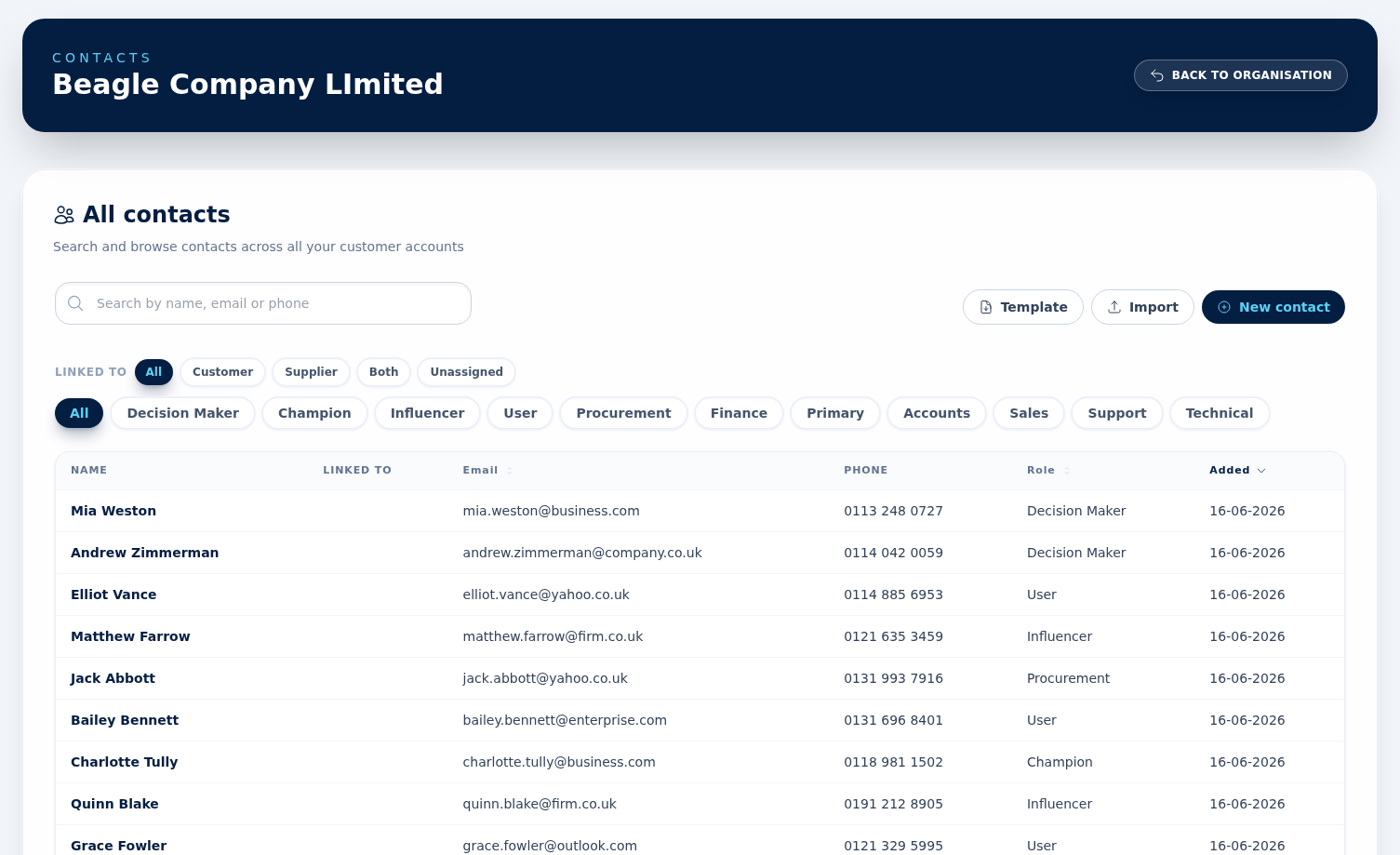
You can add contacts from the global Contacts area, from a customer record, or from a supplier record. From the global Contacts area you can link the person to a customer account, a supplier, or both at the same time. When you add a contact from a customer or supplier record, that parent is fixed for the new contact — link the second account afterwards from the global Contacts area.
Contact details you can store
Contacts can include salutation, first name, last name, job title, department, primary email, primary phone, mobile phone, and role.
Customer and supplier contact in one record
If one person buys from you and also works for one of your suppliers, keep them as a single contact and link them to both records. This keeps communication history cleaner and avoids managing duplicate versions of the same person.
Filter and open contacts
The global Contacts page lets you search by name, email, or phone, then narrow the list by role and by link, using the All, Customer, Supplier, Both and Unassigned chips — Unassigned being a contact linked to neither. Admins and Agents can open a contact for editing; Viewers are taken to the related customer record when one is linked.
Import contacts in bulk
Use the global Contacts page to download the import template and upload a completed Excel .xlsx file up to 5MB. The import follows an upload, preview, then confirm flow and shows live progress while valid rows are being imported.
Preview and error export
The import preview shows which rows are ready and which rows contain errors before anything is created. If some rows fail validation, use Export errors to download contacts-import-errors.xlsx for review and correction.
Linking after import
The import template does not assign customer or supplier links. After import, open the contact and connect it to the right customer, supplier, or both.
Import template columns
The contact import template includes these headings: Salutation, First Name, Last Name, Job Title, Department, Email, Phone, Mobile, Role, Marketing Email Consent, Marketing SMS Consent, Marketing Post Consent, Marketing Consent Basis, and Marketing Consent Source.
Opt-in cells accept yes / no / y / n / true / false / 1 / 0, and a blank cell counts as no opt-in. When any opt-in is true, the Marketing Consent Source column is required — leave it blank and the row is rejected at preview time.
Marketing consent
Each contact carries the same per-channel opt-in (email / SMS / post), lawful basis, and provenance label as customers. See the Customers section for the full breakdown — same fields, same audit-log behaviour, same tokenised unsubscribe handling. Opening a contact in the side panel surfaces the Marketing Consent fieldset; flipping any channel writes an append-only event.
Roles, onboarding, and duplicates
Contact roles matter beyond the address book. A customer needs at least one Decision Maker contact to clear the onboarding checklist, and a lead needs a primary contact before it can be quoted cleanly. Keep one record per person where possible; if the same person belongs to both a customer and supplier, link the single contact to both accounts instead of creating duplicates.
Erase personal data (GDPR)
Admins can honour a right-to-erasure request from the contact or lead detail panel with the Erase (GDPR) button. For contacts you confirm by typing ERASE and the wipe is carried out in the background; leads erase on a click-confirm. For a contact it clears the salutation, names, job title, department, email, phone and mobile numbers, the profile picture and the marketing consent. For a lead it replaces the name with [erased], clears the free-text fields (notes, lost reason, won reason, close notes, source detail and competitor) and the marketing consent — a lead holds no email or phone of its own. In every case the record is marked as erased and it cannot be undone.
The record itself is kept so that invoices, quotes, and other financial documents referencing it stay intact — you're legally required to retain those under UK GDPR Article 17(3)(b) — but every personal field is wiped. The erasure is recorded in the audit log without storing the deleted values.